CruzPay Timesheets
Student Consultants are responsible for filling out their timesheet at the end of every shift, projecting hours, and submitting it online (every 2 weeks) when notified by the management team.
Make sure to click “Save” after making any updates to your timesheet.
Be proactive – You are responsible for filling out your CruzPay timesheet at the end of each shift and making sure it is accurate and up-to-date. If you have any questions about CruzPay please contact the Management team. The sooner we can help resolve an issue, the less likely payment delays will occur.
There should be no major discrepancies between your CruzPay and your clock-in times on Humanity. If there are any errors in your timesheet, your paycheck will likely be delayed because of missed CruzPay deadline and it can reflect poorly on your performance.
Example Timesheet:
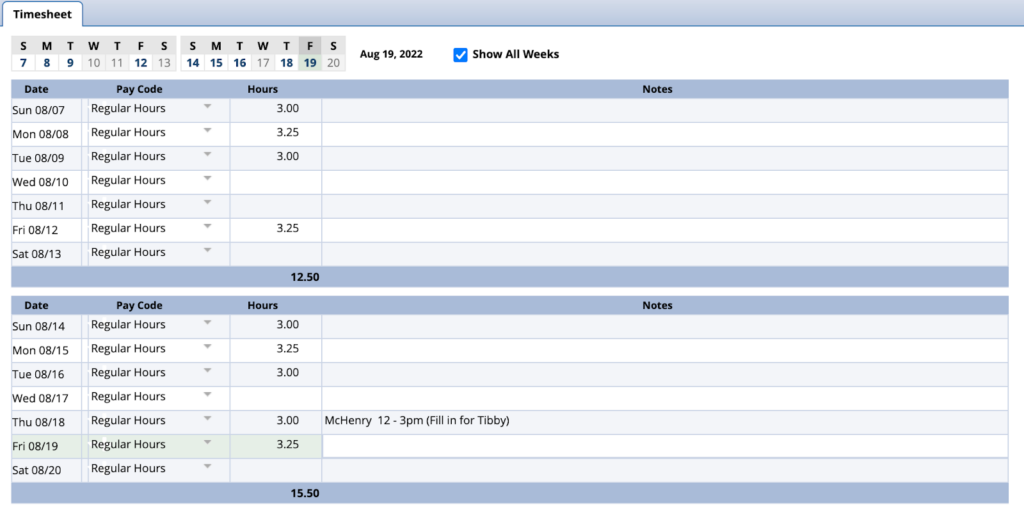
List View
This is the default view which is shown above, and to edit, you simply add values to the hours and notes fields.
Table View
If you’d like to expand the notes section, you can swap to Table View by clicking the “View” button.

In table view, you have to click the hours corresponding to the day you’d like and click the expansion button underneath the table to add notes to. One way to check which hours have notes in this view, there will be a mark on the top right corner of each box with notes.